The Firewall traffic dashboard shows the destinations that the APN firewall detected your SIMs access or tried to access. It tells you where your devices connected, how much data they moved.
Use it to answer questions like "why is this fleet using more data than expected?", "which destinations are using the most data?", "which destinations are devices trying to connect to?", and "which SIMs are trying to connect to blocked destinations?".
---> To see firewall data of an individual SIM, go the the SIMs detail screen and look for the "Top Destinations by Firewall Traffic" section.
Where to find it
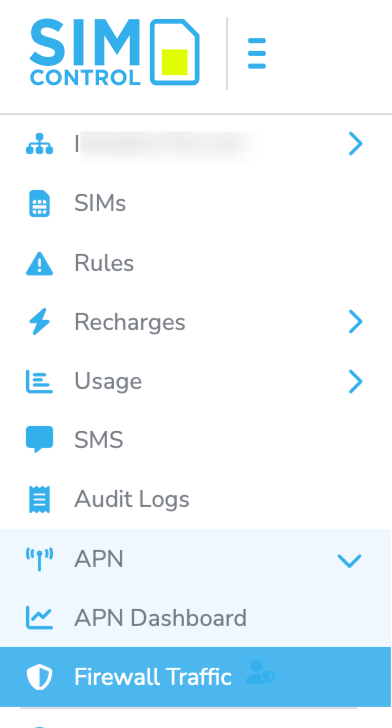
In SIMcontrol, go to APN > Firewall Traffic in the left menu.
The menu item only appears if your company has the APN service enabled and if the account has firewall reporting switched on. If you cannot see the menu item, contact support.
The numbers are firewall numbers, not billing numbers
Figures on this page comes from the firewall, not from the mobile network operator. The two will never match exactly. The firewall counts the traffic it handled. The operator bills on its own records, which include data overheads the firewall does not see.
Treat this dashboard as a guide to behaviour, and not as accurate network billing data.
Choosing the date range
Two buttons sit in the top right of every firewall page: Last 7 days and Last 30 days. The selected range applies to the whole page, including the tiles, the chart and both tables.
The header shows the number of SIMs observed in the selected range. "SIMs observed" count the SIMs that actually moved data past the firewall. It is not the number of SIMs on the account. A SIM that was switched off, or that only made attempts the firewall blocked outright, does not appear in this count.
Allowed and blocked destinations
This shows what the firewall let through and what it stopped.
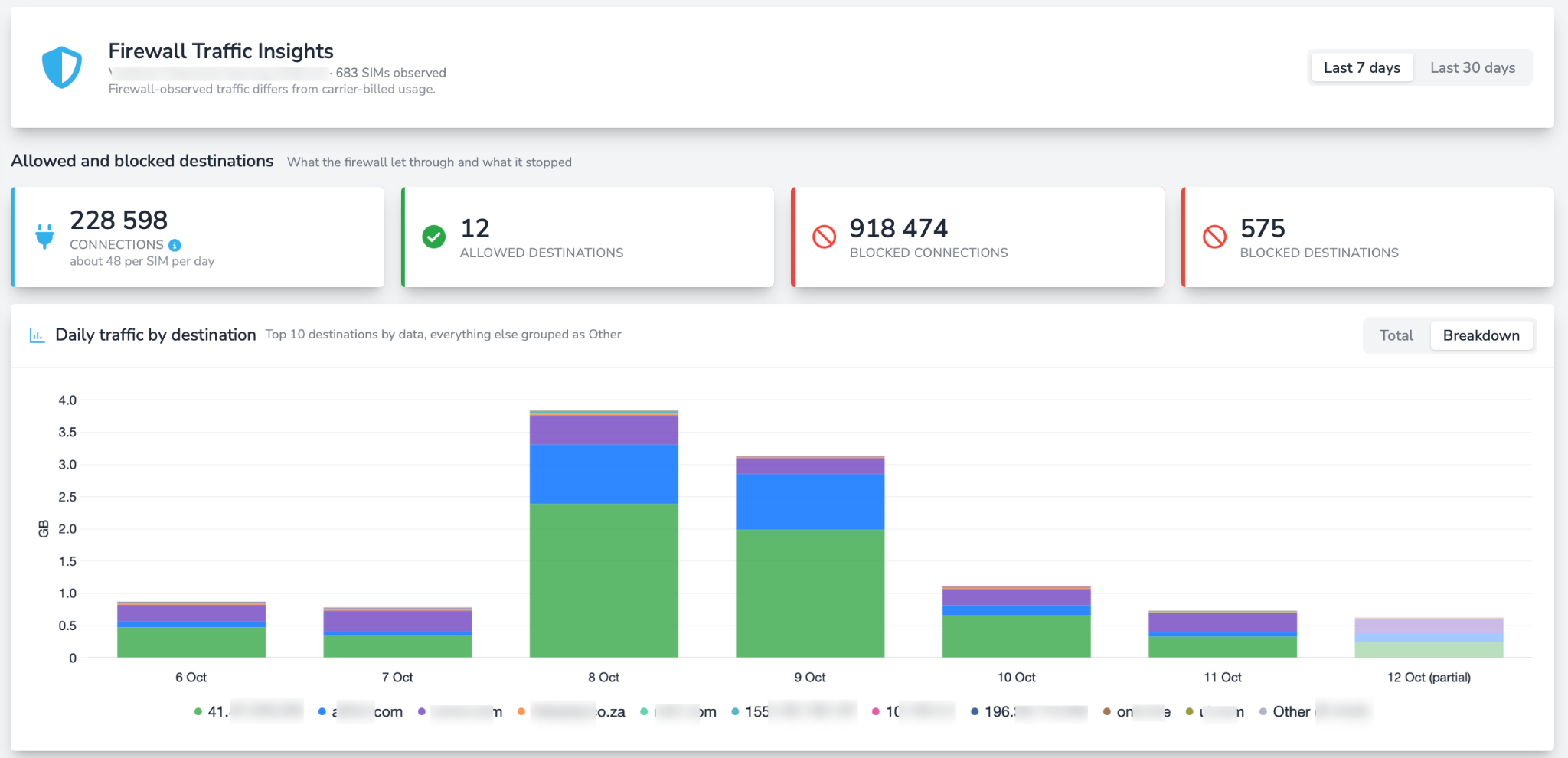
Connections
Total Connections
The total number of connections devices opened to destinations. A connection is one conversation between a device and a destination. Some devices open a new one for almost every request, sync or check in, so large numbers are normal and are not a problem on their own.
Under the number you will see a rate, for example "about 240 per SIM per day". A tracker that connects home once a minute and a tablet with long open sessions in daily use will sit at very different rates, so learn what is normal for each fleet.
Allowed Destinations
The number of unique destinations that were allowed.
Blocked Connections
The number of connections that were blocked by the firewall.
Blocked Destinations
The number of destinations blocked by the firewall
Daily traffic by destination
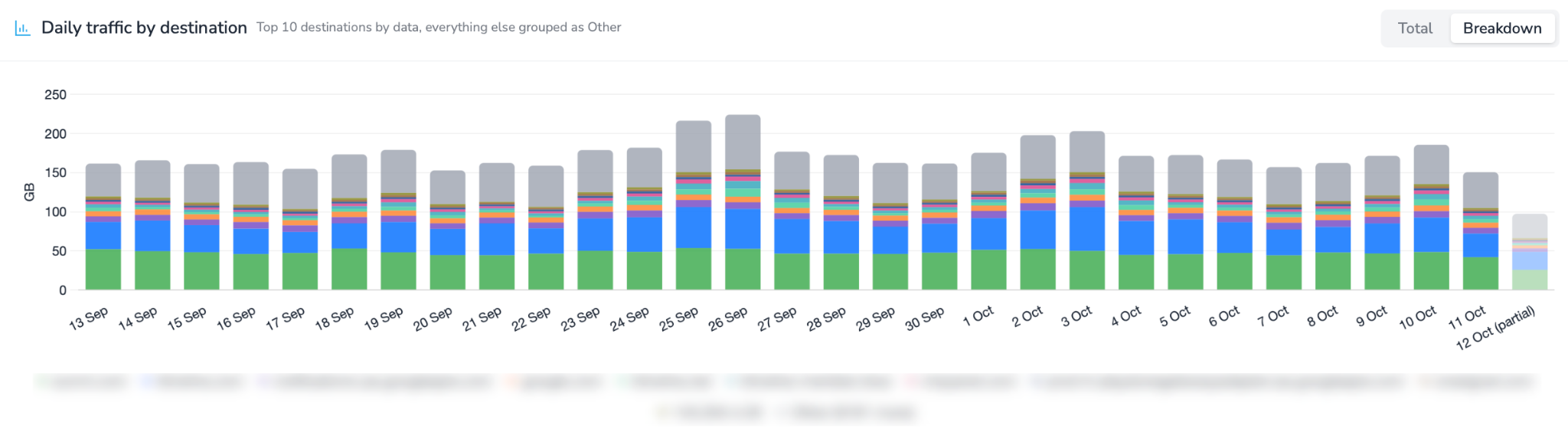
The stacked bar chart shows one bar per day for the selected range. Each bar is that day's total data split by destination.
- Mouse-over the bar chart to see the top 10 destination breakdown for each day.
- Click on a destination address below the chart to remove that destination from the bar chart.
Reading the chart
- Look for the shape first. Weekday and weekend patterns, or a device fleet that works to a schedule, should show a regular rhythm.
- A single tall bar usually means a bulk update, a firmware push or a device that misbehaved for one day.
- A step change that stays high means something changed in the fleet, such as a new app version or a new device batch activated.
Top allowed and top blocked destinations
This section shows the destinations allowed and what the firewall stopped. Click on the domain names listed to open a detailed page of all SIMs and traffic to that destination.
Click on "View SIMs" next to each domain name listed to view all traffic stats to that destination, plus a full list of SIMs.
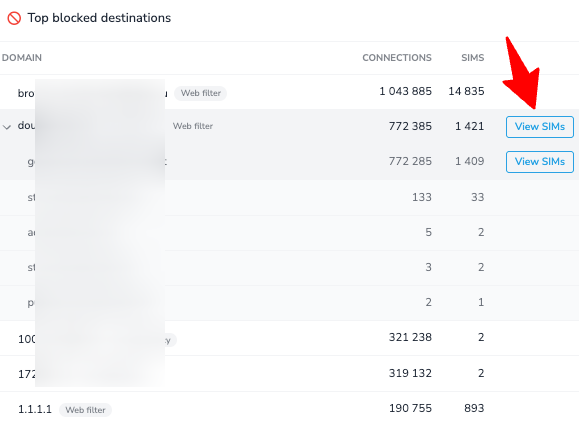
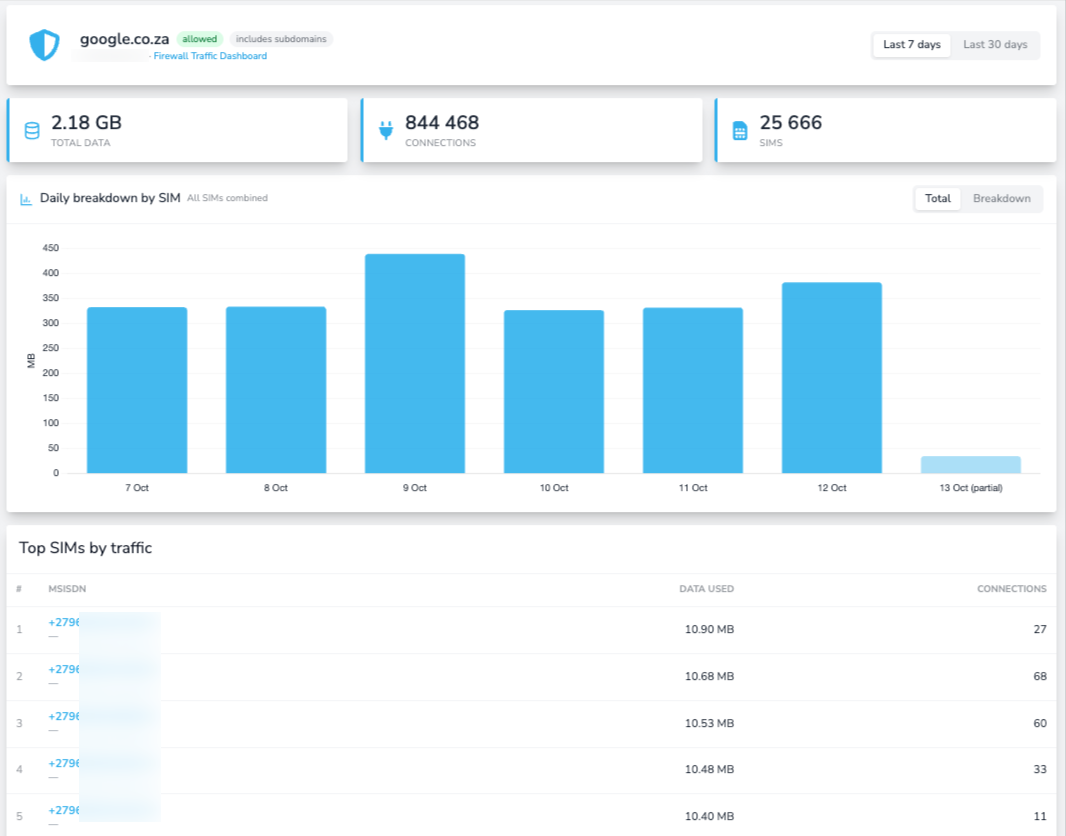
Note that blocked destinations still use data. A device that keeps retrying transfers a few kilobytes on each attempt before the firewall ends the connection. Many attempts can add up. This is why a blocked destination is still worth chasing down on the device.
Changing firewall rules
To change your private APN firewall rules, please log a change request with our support team. The change request will be formally logged and signed off for change tracking.
Was this article helpful?
That’s Great!
Thank you for your feedback
Sorry! We couldn't be helpful
Thank you for your feedback
Feedback sent
We appreciate your effort and will try to fix the article